
Checking Compatibility#
This document provides compatibility information for the software products offered by Mobilint. When configuring or updating the system, you must refer to the table below to ensure that compatible versions are used. Using incompatible combinations may result in unexpected behavior or system errors, and normal operation cannot be guaranteed.
Linux/Ubuntu#
Driver-Runtime-Firmware Compatibility#
Driver Ver. |
Runtime Ver. |
Firmware Ver. |
|---|---|---|
1.0 ~ 1.10 |
0.28.0 ~ 0.30.1 |
1.1.1 ~ latest |
1.11 ~ latest |
1.0.0 ~ latest |
1.1.1 ~ latest |
Windows#
Driver-Runtime-Firmware Compatibility#
Driver Ver. |
Runtime Ver. |
Firmware Ver. |
|---|---|---|
1.6.230 |
0.28.0 ~ 0.30.0 |
1.1.1 ~ latest |
1.7.1 ~ 1.7.5 |
0.30.1 ~ 0.30.1 |
1.1.1 ~ latest |
1.8.0 ~ latest |
1.0.0 ~ latest |
1.1.1 ~ latest |
MXQ Compatibility Matrix#
To run a deep learning model optimized for Mobilint’s hardware (MXQ file extension), you must use a runtime that supports the specific MXQ format version on which the model is based.
This section provides a compatibility matrix of MXQ files for each runtime:
Runtime Ver. |
MXQ Ver. |
|---|---|
0.28.0 ~ 0.28.0 |
MXQv1 ~ MXQv5 |
0.29.0 ~ 0.30.1 |
MXQv1 ~ MXQv6 |
1.0.0 ~ latest |
MXQv1 ~ MXQv7 |
How to check the version#
Runtime Library#
If you downloaded the runtime library from the official Download Center, the version information is typically available at the time of download.
Alternatively, you can print out version via runtime provided method :
// C++ Example
std::cout << mobilint::getQbRuntimeVersion() << "\n";
# Python Example
print(qbruntime.__version__)
Driver, Firmware#
You can check both driver and firmware versions using utility tool. For utility installation instructions, check installing utility.
Linux/Ubuntu
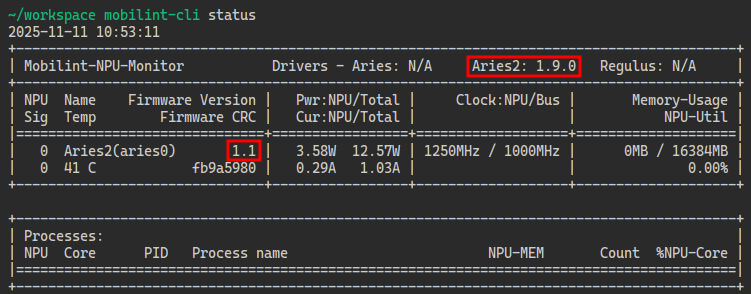
In Linux/Ubuntu environments, you can use utility
mobilint-clito check driver and firmware versions.Run the following command:
mobilint-cli statusDriver and firmware versions will appear in red box section of the output, as shown below.
Windows/Linux
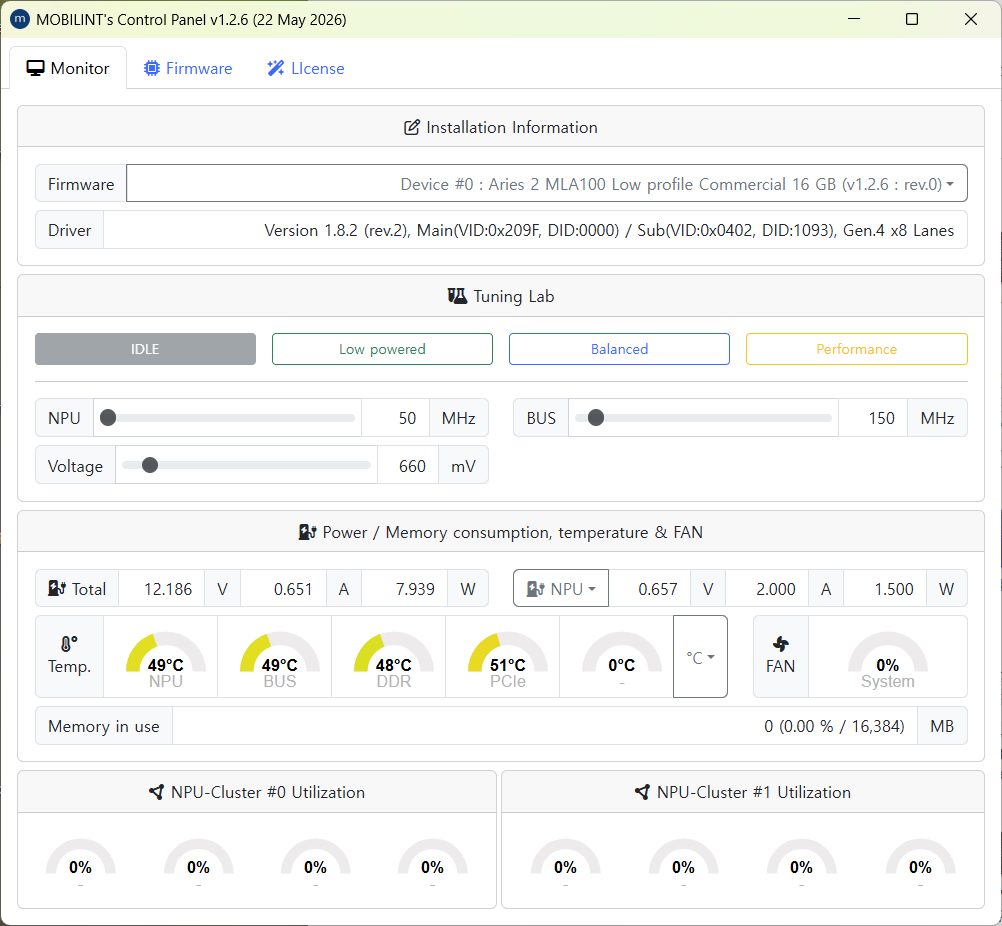
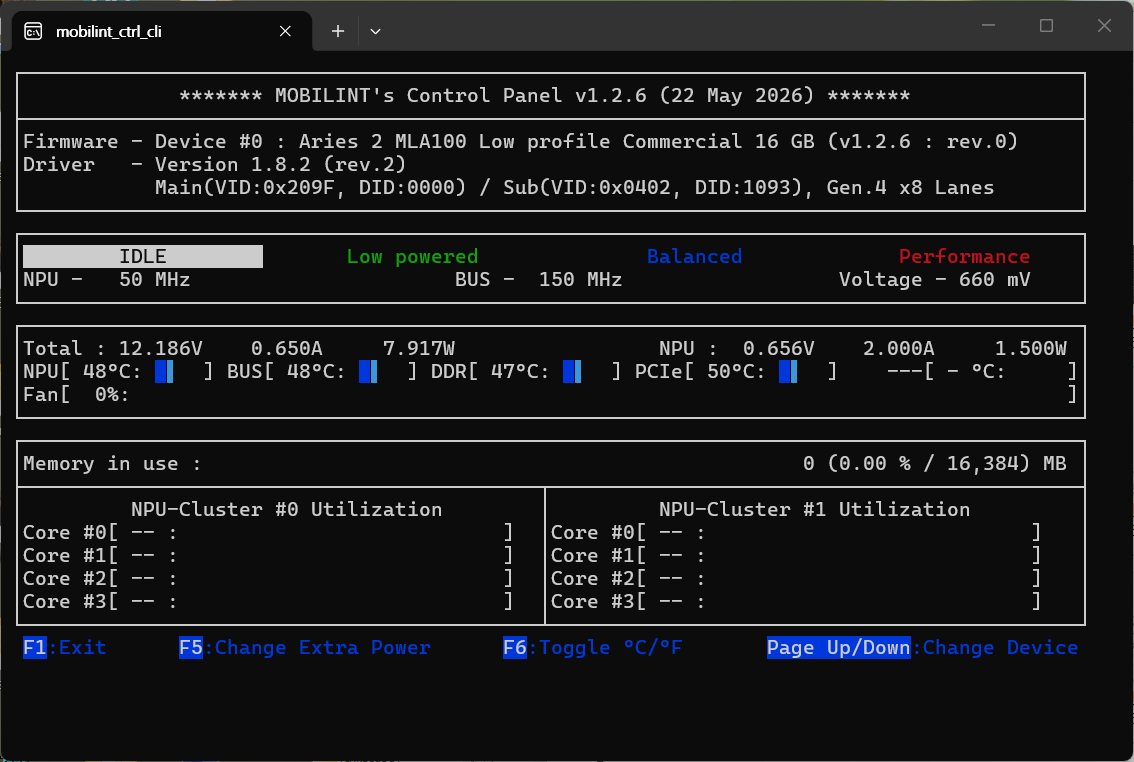
In both Windows and Linux environments, you can check driver and firmware versions using the
mobilint_ctrl(GUI) ormobilint_ctrl_cli(CLI) utilities.After installing utilities according to installing utility, run the
mobilint_ctrlormobilint_ctrl_cli.
MXQ#
Caution
Currently, MXQ version checking tool is available only for Linux/Ubuntu environments.
You can check MXQ version using
mobilint-cliutility tool.Run following command:
mobilint-cli mxqtool show {mxq_path}
Example output:
$ mobilint-cli mxqtool show resnet50_IMAGENET1K_V1.mxq
Format Version:           0x60000
Compiler Version:         0.10.0.0
Hardware Version:         Aries2
...
The most significant digit of “Format Version” value indicates MXQ version. For example, “0x60000” corresponds to MXQv6.