
Utility Usage#
This document provides information about utility tools that can be used to check the status of the Mobilint NPU or perform tests.
Linux-Specific Utilities#
Mobilint provides the following utility for Linux/Ubuntu environments:
mobilint-runtime-gui: A GUI-based utility that enables users to easily run and test various AI models on the NPU without writing any code.
mobilint-runtime-gui#
Start GUI server
In the terminal, run following command to start the GUI server.
mobilint-runtime-gui
If the server starts successfully, an access URL will be displayed in the red box area, as shown below (e.g., “http://127.0.0.1:5000”).

Open in the Web browser
Copy the URL shown in the message, then paste it into your web browser’s address bar to connect.
Use GUI
One the connection is successful, the GUI page will appear as shown below.
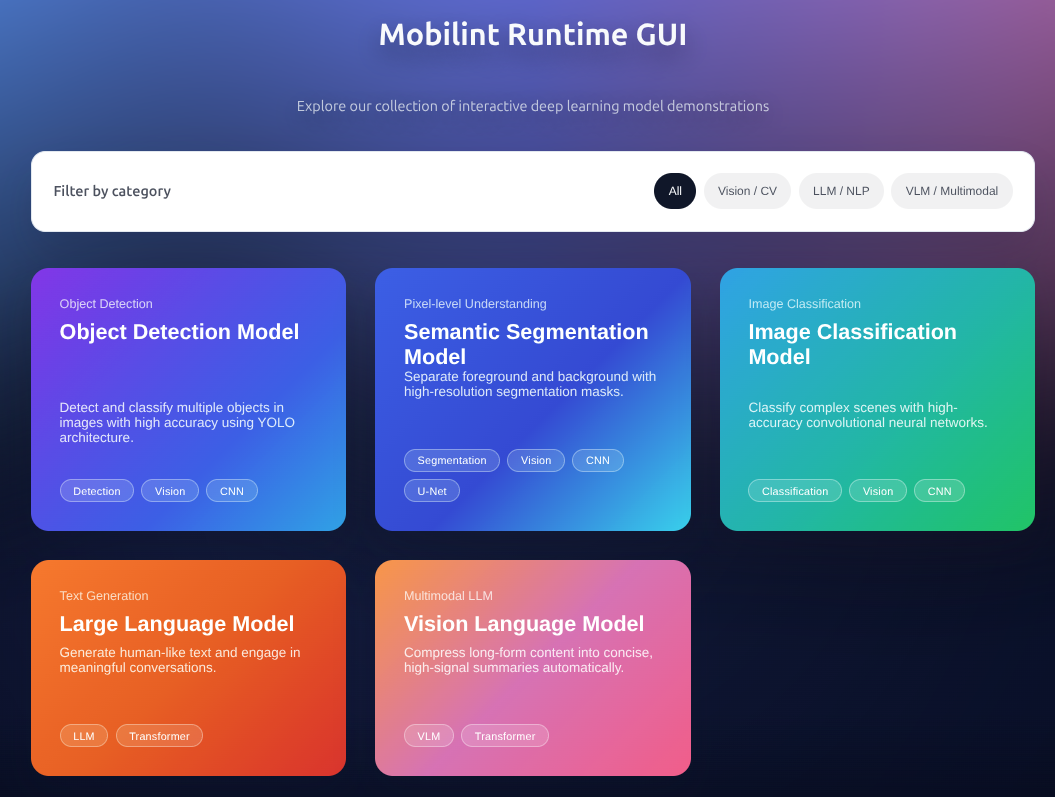
Stop the server
To exit, go back to the terminal where the server is running and press “Ctrl + C” to stop the GUI server.
Windows, Linux Common Utilities#
mobilint-cli: Command-line utility for checking NPU status, running benchmarks, and viewing MXQ information.
mobilint_ctrl: GUI utility for checking NPU status and updating firmware.
aries_flash_firmware: CLI utility for updating NPU firmware.
mobilint-cli#
Checking NPU Status
mobilint-cli status-Lor--list-npus: Lists all NPU devices installed on the system.-i {device_id}or--id {device_id}: Shows the status of specific NPU device identified by{device_id}. On Linux,{device_id}corresponds to the number in/dev/aries*.-l {second}or--loop {second}: Continuously shows the device status every{second}seconds. If the-ior--idoption is omitted, default device is device 0.-m {milli_sec}or--loop-ms {milli-sec}: Same as the-loption, but with a millisecond interval.-f {file_name}or--file {file_name}: Saves the device status to the file{file_name}.-qor--query: Displays NPU information.-s {item}or--select {item}: Selects which information to display, such asPRODUCT,FIRMWARE,TEMPERATURE,POWER,MEMORY, andUTILIZATION. Combine items with commas and use this option together with-q.
Monitoring NPU Status Continuously
mobilint-cli topKeeps refreshing NPU status and resource usage on screen.
Listing Available NPUs
mobilint-cli devicesEquivalent to
mobilint-cli status -L.MXQ File status
mobilint-cli mxqtoolshow [--verbose] {mxq_path}: Shows information about the MXQ file located at{mxq_path}. Add--verbosefor detailed output.extract {mxq_path} {dir_path}: Extracts the content from the MXQ file at{mxq_file}, including bundled files, and saves them to{dir_path}directory.collect {dir_path} {mxq_path}: Reconstructs a new MXQ file at{mxq_path}based on the content of{dir_path}, which was extracted using theextractoption.export-loc {mxq_path} {dir_path}: Exports the loc file of the MXQ file at{mxq_path}to the{dir_path}directory.
Model Summary
mobilint-cli summary {mxq_path}
Prints a summary of the model contained in the MXQ file at
{mxq_path}.Inference Testing
mobilint-cli testinfer--repeat-count {num}: Repeats inference{num}times.--core-mode {mode}: Specifies the core mode to use during inference. (You must use mode that you specified at compile stage.)--mxq-path {mxq_path}: Inference MXQ model located in{mxq_path}.--summary: Prints internal information conatained in mxq file specified by--mxq-pathoption.For additional options, please refer to
--helpoption.
Benchmark
Note
mobilint-cli benchmarkcommand currently only supports vision models.mobilint-cli benchmark-p {mxq_path}or--mxq-path {mxq_path}: Using MXQ file located at{mxq_path}.-t {second}or--time {second}: Performs benchmark test for{second}seconds.For additional options, please refer to
--helpoption.
Version
mobilint-cli version
Mobilint Ctrl#
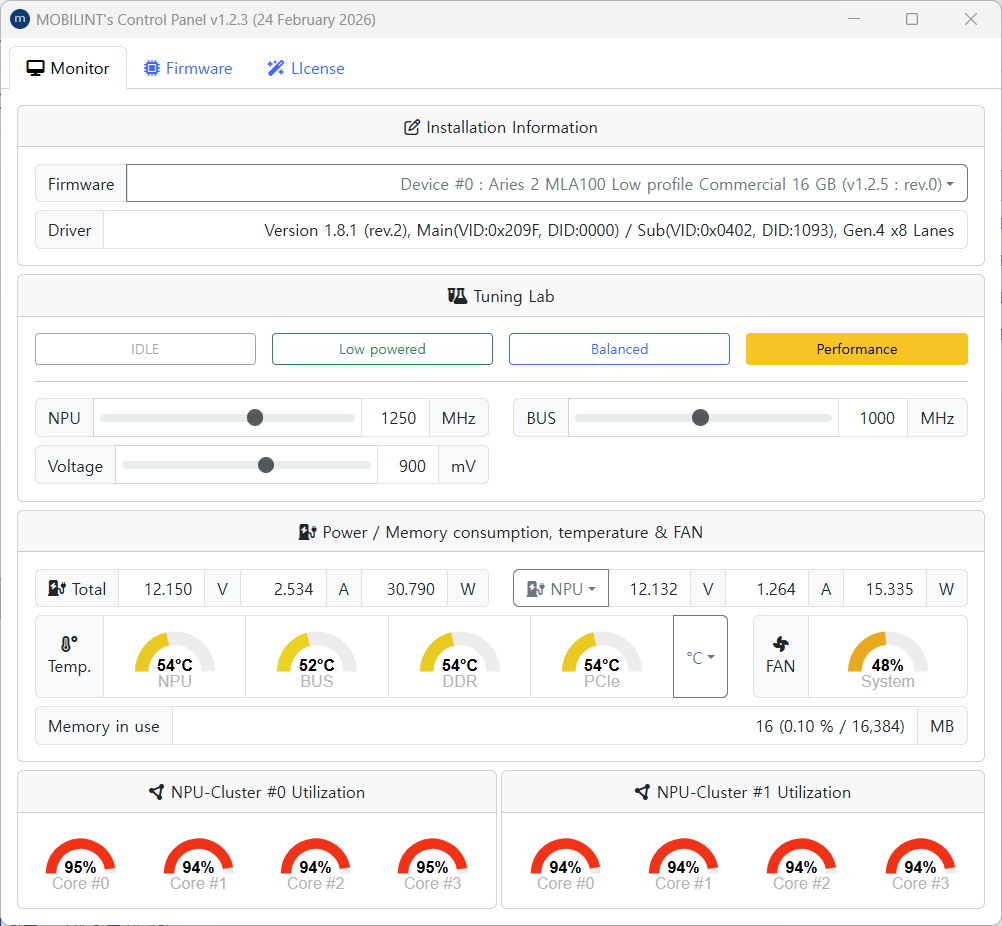
As shown in the image above, it displays various status information about the NPU.
aries_flash_firmware#
Available command descriptions
> aries_flash_firmware

Flash firmware for Aries. v0.5 (build #348 date : 31 December 2025)
Usage: aries_flash_firmware  [--help] [-f|--force] [-s|--supress_info] [-i|--id=device_id] [-t input_value] firmware_file

      --help                display this help and exit
  -f, --force               Force to flash without validation check.
  -s, --supress_info        Suppressed information.
  -i, --id=device_id        Device ID. (default : 0)
  -t input_value            Extra input value for special command.
  firmware_file             Input firmware file name(.gpt) or command.

                            ** Special command ** ([] <= with 'input_value')
                            status     : Get current device status [to file]
                            info       : Get firmware information [from file]
                            device     : List up all devices
                            list       : List up all firmware release
                            download   : Download latest/[Specific] firmware
                            update     : Update latest/[Specific] firmware
                            product    : Show product management information
Get installed card status
aries_flash_firmware status [-i device_id]
> aries_flash_firmware status
* PCIe Device Driver connection details.
        > Driver version : 1.6.229 (Revision 0)
        > PCIe card connection information.
                 - Main-System(VID:0x209F,DID:0x0000), Sub-System(VID:0x0402,DID:0x1093), PCIe 4.0 - 8 Lanes
        Device type   : Aries 2 (Firmware rev. 0)
        Product type  : Commercial
        Board type    : Low profile
        DRAM size     : 16 GB

*I: Current firmware.
    - Reading Board [==================================================] Done.
        BSP           : aries-mla100-32Gb
        Product name  : MLA100 LowProfile 16GB
        Version       : v1.2.2 rev.0 (Build date : 2025-08-12 17:01:48 KST)
        Configuration : master(26c3edab) release
        SHA256 check  : Ok!

*I: The firmware is already up to date.
Get all devices’ information
> aries_flash_firmware device
*** Device list. ***

   Device #0 (\\.\mobilint_pcie)
        - Aries 2 Low profile 16 GB (Firmware v1.2.4[rev.0], Commercial)

*I: Total 1 device is found.
Firmware update via on-line
Note
A system reboot is required after updating the firmware.
>aries_flash_firmware update
* PCIe Device Driver connection details.
        > Driver version : 1.8.0 (Revision 2)
        > PCIe card connection information.
                 - Main-System(VID:0x209F,DID:0x0000), Sub-System(VID:0x0402,DID:0x1093), PCIe 4.0 - 8 Lanes
        Device type   : Aries 2 (Firmware v1.2.4 rev#0)
        Product type  : Commercial
        Board type    : Low profile
        DRAM size     : 16 GB

*I: Current firmware.
    - Reading Board [==================================================] Done.
        BSP           : aries-mla100
        Product name  : MLA100 LowProfile
        Version       : v1.2.4 rev.0 (Build date : 2026-02-03 14:06:23 KST)
        Configuration : HEAD(10944bc7) release
        SHA256 check  : Ok!

*I: No need to update, The firmware is already up to date.
- More detail information : https://docs.mobilint.com