Driver Installation#
The driver is required for enabling communication between your host system and the installed NPU device. It is available on Linux (Debian-based and RedHat-based distributions) or Windows systems.
Attention
Please complete driver installation before proceeding with runtime setup.
Please check compatible driver, runtime, and firmware versions on the Checking Compatibility page.
Table of Contents#
Linux
Windows
Linux#
Option 1: Installing via APT#
Mobilint provides a driver package for Debian-based distributions such as Ubuntu that can be installed using the APT package manager. For a RedHat-based OS, see Installing via DNF; for any other distribution, see Manual Download to build the driver from source.
Requirements#
Before starting, ensure the following:
Your system is running Ubuntu 20.04, or later (x86-64 or ARM64)
You have sudo/root privileges
The following build tools are installed:
sudo apt install linux-headers-$(uname -r) build-essential
Installation Process#
Add the Mobilint APT repository to your system before proceeding with the installation.
# Add Mobilint's official GPG key:
sudo apt update
sudo apt install ca-certificates curl
sudo install -m 0755 -d /etc/apt/keyrings
sudo curl -fsSL https://dl.mobilint.com/apt/gpg.pub -o /etc/apt/keyrings/mblt.asc
sudo chmod a+r /etc/apt/keyrings/mblt.asc

# Add the repository to apt sources:
printf "%s\n" \
    "deb [signed-by=/etc/apt/keyrings/mblt.asc] https://dl.mobilint.com/apt \
    stable multiverse" | \
    sudo tee /etc/apt/sources.list.d/mobilint.list > /dev/null

# Update available packages
sudo apt update
Install the driver using the command below.
sudo apt install mobilint-aries-driver
Warning
If Secure Boot is enabled on your PC, driver will not be installed. Please disable Secure Boot and reinstall driver, or refer to Installation on Secure Boot.
You can check whether Secure Boot is enabled using the following command.
$ mokutil --sb-state
SecureBoot enabled
Verifying Installation#
Check that the driver is installed with the following command.
$ lsmod | grep aries
aries                  <size>  0
Then check that the device node has been created:
ls -al /dev/aries*
If your NPU is recognized, you should see output listing device nodes such as /dev/aries0.

If not, confirm the NPU is recognized on the PCI bus:
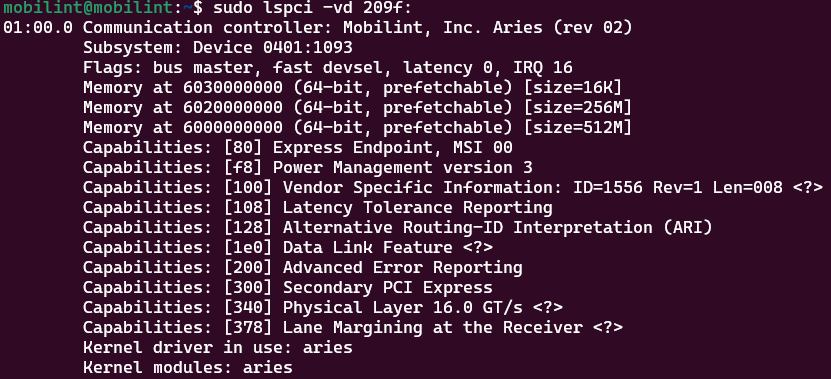
sudo lspci -vd 209f:
If this command does not return an output like the following image, check the hardware connection (power, PCIe seating) or try another slot.
If you are unable to install the driver using the provided method, please follow the alternative installation method described below. Or contact our technical support team at https://discuss.mobilint.com.
Installation on Secure Boot#
To install the driver in an environment where Secure Boot is enabled, you need to register the driver’s MOK (Machine Owner Key) in the system.
Warning
MOK registration cannot be performed in a remote work environment; it must be done by directly accessing the system with display and keyboard.
The registration procedure is as follows:
First, when you enter the installation command, the following message will appear.
$ sudo apt install mobilint-aries-driver
* READ ME! *****************************************************************
*
* Installation Instruction for Secure Boot Mode
*
* You are now installing aries driver on secure boot mode. MOK (Machine Owner Key) should be enrolled to the system first for succesful driver installation. If you haven't enrolled MOK yet, make sure that you are not accessing the system remotely (via ssh) as you need to enroll the MOK on system booting. Follow the instructions below.
*
* 1. You will be prompted to set password for MOK key enrollment. Set the password (which should be 8 to 16 characters) and remember it for step 2.
* 2. Reboot to enroll MOK to the system. Blue screen will pop up automatically for MOK enrollment. Enroll the key using the password you set in step 1. If you failed to enroll MOK for any reason, move on to step 3.
* 3. Reinstall the driver: \"sudo apt install mobilint-aries-driver\".
* 4. If the installation was successful, check whether the driver is loaded: \"lsmod | grep aries\". If not, follow the instruction from step 1 again.
*
*********************************
Enter the MOK password following the instructions. The password must be between 8 and 16 characters.
[Instruction] Set password for MOK enrollment
input password:
input password again:
After entering the MOK password, you may see an error log indicating installation failure along with a message instructing you to reboot the system and reinstall the driver. Then, reboot the system.
[Instruction] Enroll MOK on reboot. Then reinstall the driver.
dpkg: error processing package mobilint-aries-driver (--install):
 installed mobilint-aries-driver package post-installation script subprocess returned error exit status 1
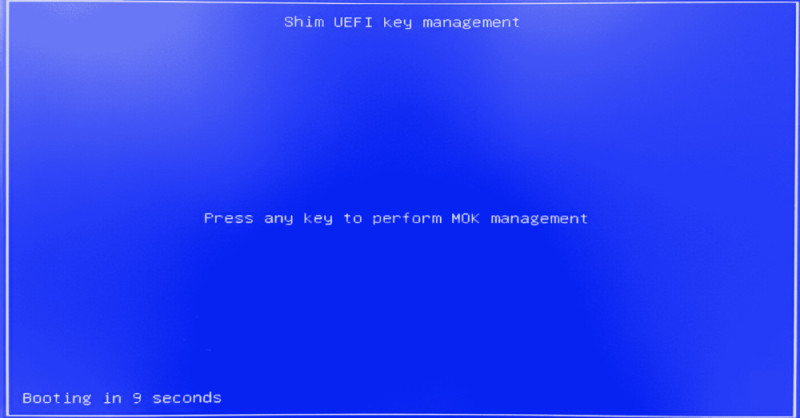
When the system reboots, a blue screen titled “Shim UEFI Key Management” will appear. Then, press any key to proceed to the MOK configuration.
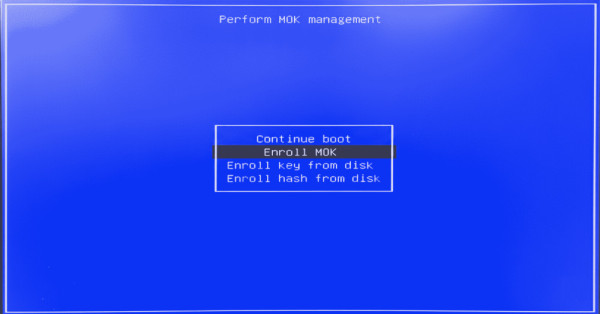
When the “Perform MOK Management” screen appears, select “Enroll MOK”.
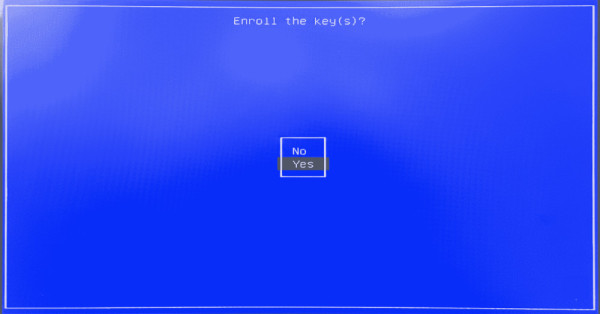
When the “Enroll the key(s)?” screen appears, select “Yes”.
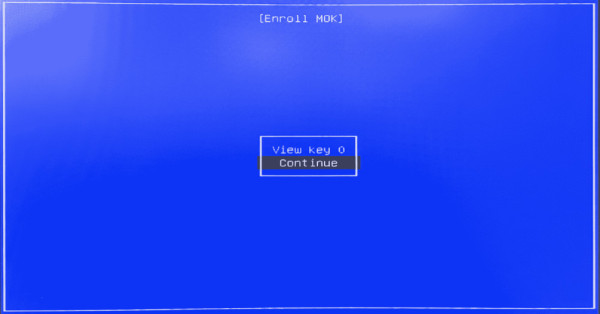
When the “Enroll MOK” screen appears, select “Continue”.
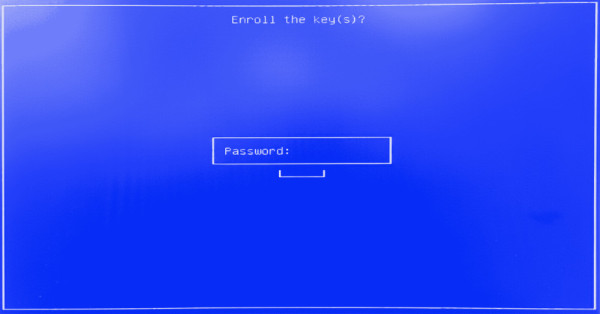
Enter the MOK password that you set during the driver installation by apt.
After the MOK registration is complete, select “Reboot” to restart the system.
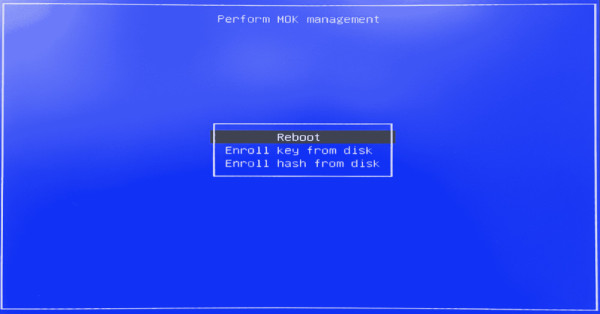
Once the system reboots after completing MOK registration, try to reinstall the driver. The installation should now proceed successfully.
sudo apt install mobilint-aries-driver
Note
If you enter the MOK password incorrectly during the MOK registration process, the installation command will request that you set a new MOK password. After setting the new password, reboot the system and repeat the MOK registration process.
Option 2: Installing via DNF#
Mobilint provides a driver package for RedHat-based distributions that can be installed using the DNF package manager. The package is DKMS-based, so the driver module is built automatically against the running kernel.
Requirements#
Before starting, ensure the following:
Your system is running a RedHat-based OS such as RHEL or Rocky Linux, version 8 or later (x86_64 or aarch64)
You have sudo/root privileges
The
dkmspackage is required, since the driver package is DKMS-based.dkmsis not provided by the default repositories of RedHat-based distributions; it is provided by the EPEL (Extra Packages for Enterprise Linux) repository, so you must enable EPEL before installingdkms.# Enable the EPEL repository sudo dnf install epel-release # Install DKMS sudo dnf install dkms
The kernel development packages matching the running kernel are required to build the driver module. If they are not installed, install them with the following command.
sudo dnf install kernel-devel-$(uname -r) kernel-headers-$(uname -r)
Note
If the command above does not install them, install the packages according to the repository configuration of your distribution.
Installation Process#
Register the Mobilint DNF repository on your system.
sudo curl -fsSL https://dl.mobilint.com/dnf/mobilint.repo \
     -o /etc/yum.repos.d/mobilint.repo
Install the driver with the following command.
sudo dnf install mobilint-aries-driver
Note
On the first installation,
dnfasks whether to import Mobilint’s GPG signing key. Enterywhen the following prompt appears.Importing GPG key 0x________: Userid : "Mobilint_RPM (gpg key for dnf - RSA key.) <infra@mobilint.com>" Fingerprint: From : https://dl.mobilint.com/dnf/gpg.pub Is this ok [y/N]: y
Warning
If Secure Boot is enabled on your system, the driver is not loaded even after the installation command completes. Either disable Secure Boot before installing the driver, or refer to Installation on Secure Boot with DNF.
Follow Verifying Installation to check that the driver is loaded and the device node has been created.
Troubleshooting the Installation#
Even when the installation command ends with a Complete! message, the driver may not be installed correctly. This happens when a dependency is missing or when Secure Boot prevents the module from being built and loaded; in that case the installation log contains one of the messages below. Scroll up through the installation log and continue the installation by following the [NEXT STEP] instructions in the message.
Note
If the kernel development packages matching the running kernel are not installed, the following message appears.
[post warning] Could not unload existing aries module
Secure Boot is disabled

*** KERNEL HEADERS MISSING FOR RUNNING KERNEL *******************************
*
* [STATUS] kernel-devel/kernel-headers matching your currently running
*          kernel (5.14.0-427.13.1.el9_4.x86_64) are not installed. The
*          package pulled in whatever kernel-devel is latest in your repos,
*          which does not match what you're booted into right now (common if
*          you haven't rebooted into the latest kernel yet) -- the driver
*          cannot be built until this is fixed.
*
* [NEXT STEP]
*     sudo dnf install kernel-devel-$(uname -r) kernel-headers-$(uname -r)
*     sudo dnf reinstall mobilint-aries-driver
*
*********************************
Note
Once the installation has been attempted at least once, regardless of whether it succeeded, use reinstall instead of install so that the driver module is built again.
sudo dnf reinstall mobilint-aries-driver
Installation on Secure Boot with DNF#
In an environment where Secure Boot is enabled, the driver’s MOK (Machine Owner Key) must be enrolled in the system before the driver can be loaded. The procedure below is only required for the first installation on a Secure Boot system.
Warning
MOK enrollment cannot be performed in a remote work environment (via SSH, for example); it must be done by directly accessing the system with display and keyboard.
You can check whether Secure Boot is enabled with the following command.
$ mokutil --sb-state
SecureBoot enabled
On the first installation, the installation command ends with a Complete! message, but this only means the MOK enrollment has been requested — the driver is not loaded yet. Confirm that the installation message contains the following instructions, then proceed to the next step.
*** READ ME! ***************************************************************
*
* [STATUS] MOK enrollment request just submitted.
*
* Secure Boot is enabled, so the MOK (Machine Owner Key) must be enrolled
* before the aries driver can be loaded. You must be at the console for
* the next boot (not SSH) to complete enrollment.
*
* [NEXT STEP]
* 1. Reboot the system. The blue MOK Manager screen appears automatically.
* 2. Choose "Enroll MOK" -> Continue, and when asked for the password, type:
*
*        mobilint
*
* 3. After it boots, reinstall the driver to build and load it:
*        sudo dnf reinstall mobilint-aries-driver
* 4. Confirm it is loaded:
*        lsmod | grep aries
*    If it is not loaded, repeat from step 1.
*
*********************************
The MOK enrollment screens shown after the reboot are the same as those described in Installation on Secure Boot. The only difference is the password: enter mobilint, the password set by the driver package, instead of a password of your own.
Once MOK enrollment is complete and the system has rebooted, reinstall the driver with the command below. The module is then built and loaded successfully.
sudo dnf reinstall mobilint-aries-driver
Option 3: Manual Download (Other Linux distributions)#
Building a kernel module requires kernel headers and a compiler, and the specific requirements may vary significantly depending on your Linux distribution and environment.
The following instructions illustrate the required steps for Ubuntu to install prerequisites using APT; please refer to them and adapt accordingly for your own system.
Requirements#
Download the appropriate driver from Mobilint’s official Download Center.
Before building the driver, make sure the following packages are installed:
sudo apt install linux-headers-$(uname -r) build-essential
Installation Process#
The driver package available from Download Center is provided in a form that allows you to build and use the kernel module directly. If you intend to use it as a loadable module, you can simply build it using make and insert or remove the kernel module as shown below.
## Build the kernel
make

## insert the kernel module
sudo insmod aries.ko
remove the kernel module
You can remove the kernel module after insert with following command:
sudo rmmod aries
Optional: Built-in Kernel Integration#
If you want to include the driver as part of your custom Linux kernel (built-in module), refer to your distribution’s kernel build and packaging process.
If you are unable to install the driver using the instructions provided, please contact our technical support team at https://discuss.mobilint.com.
Windows#
Mobilint provides a WHQL-certified Universal KMDF driver for 64-bit Windows 10/11 (Build 19041 or later).
Requirements
Windows 10 or 11 (64-bit), Universal (Above Windows 10.0.19041 build)
Windows Update may be required to reach minimum supported version
First, connect the device to the PCIe slot while the PC is powered off, then turn on the power and check if the device is properly recognized in Device Manager.
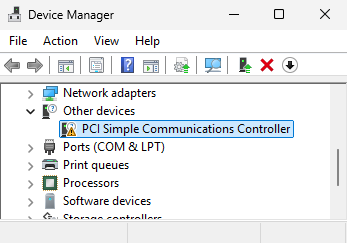
Note
Before the driver is installed, the device will appear under “Other Devices” as “PCI Simple Communications Controller”.
For the driver installation to proceed successfully, the motherboard and CPU drivers must be installed first.
Once the existence of the device is confirmed, you can proceed with installing the driver using one of the two methods below.
Option 1: Installing with Windows Update#
The easiest way is to install the driver through Windows Update.
Run “Windows update” in Settings.
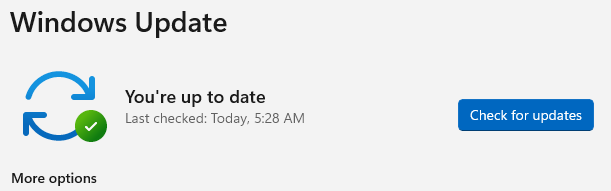
Press the “Check for updates” button and wait until it is complete.Click “Advanced options”.

Click “Optional updates”.
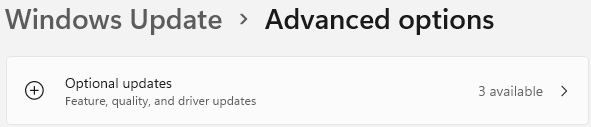
Select “MOBILINT, Inc. AI Device Driver Update” from the “Driver Updates” list, then click “Download & install”.
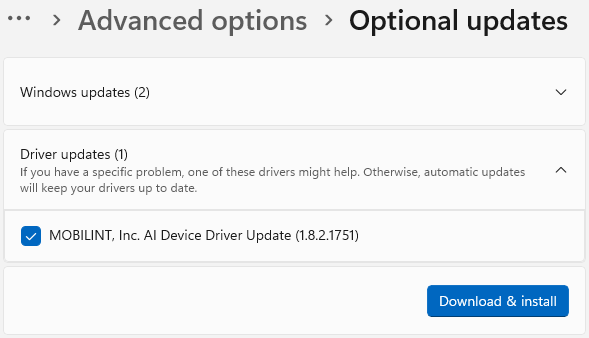
If the list is not visible, you need to check if the latest driver is already installed or if the device has been recognized first.
Option 2: Manual Installing of Windows Driver#
Drivers can be easily installed via Windows Update, but manual installation is required in situations where internet access is unavailable. When installing manually, follow the procedure below.
Download the latest Windows driver from another host PC with internet access and transfer them to the target PC.
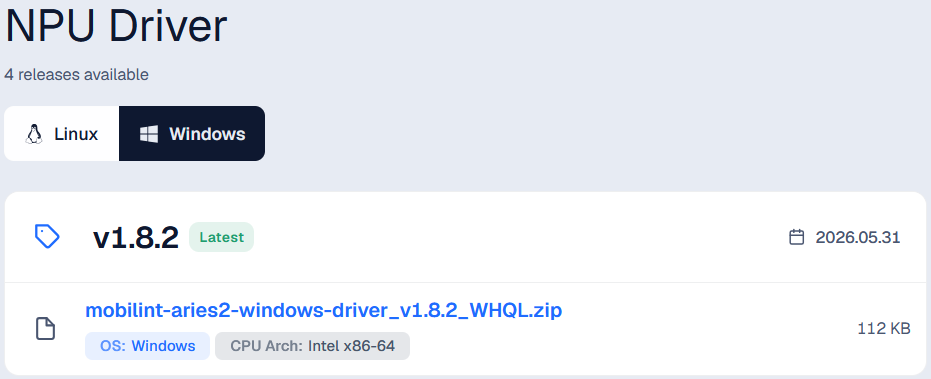
In Device Manager, click the “Update Driver” button.
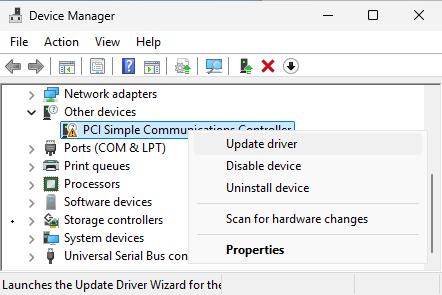
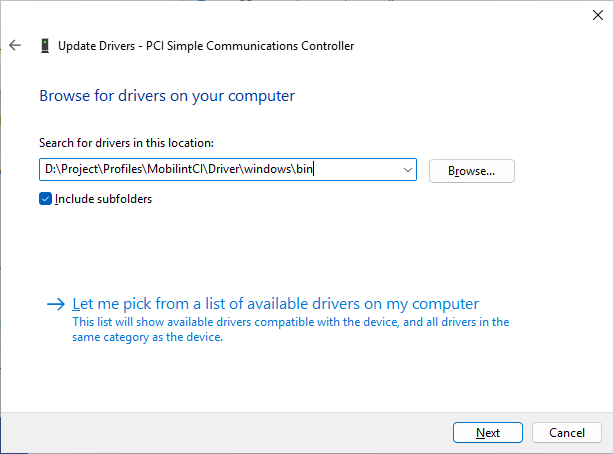
Proceed by selecting
Browse my computer for drivers.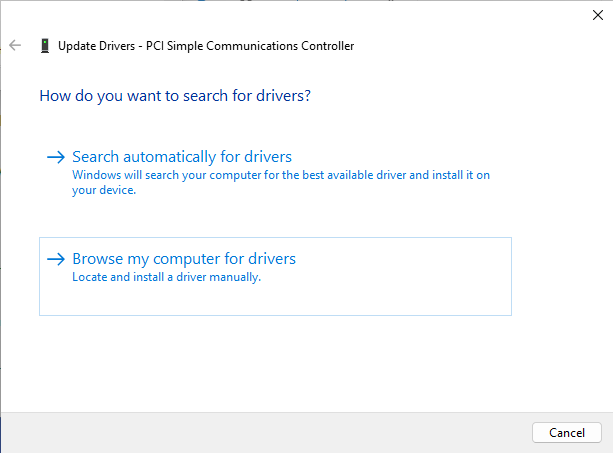
Locate the folder containing the driver files.
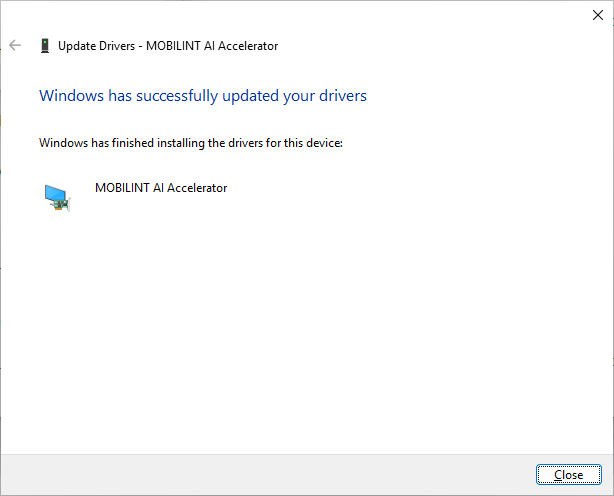
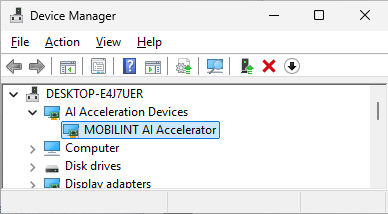
Once installation is complete, you will see that the driver has been successfully installed, as shown below.